

When Wi-Fi keeps disconnecting, the cause is almost always one of four things: a router that needs a restart or an update, a weak or crowded signal, a setting on one device, or a problem on your internet provider’s side. You can tell which by changing one thing at a time and watching what happens. This guide walks through that process in the order that saves the most time, from a 30-second router restart to channel settings, and tells you when to stop and call your provider.
TL;DR
- Restart the router first: unplug it, wait about 30 seconds, plug it back in.
- Check whether only one device drops or every device does. That single test splits “device problem” from “router or provider problem”.
- Move the router to an open, central spot, away from walls, cordless phones and baby monitors.
- If random drops continue, try a fixed Wi-Fi channel (1, 6 or 11 on 2.4 GHz) and update your drivers and router firmware.
- Needing to reboot the router several times a week, or seeing red or amber lights, means it is time to contact your provider.
Table of Contents
- Start by working out what is actually dropping
- The usual causes of Wi-Fi that keeps cutting out
- Fixes to try, quickest first
- When the problem is a single device
- When every device drops
- Could the drops mean someone has hacked your Wi-Fi?
- A worked example: the evening drops
- Prevent the next round of drops
- When to stop and call your provider
- More step-by-step help from Fix It Daily
- FAQ
- Sources
Start by working out what is actually dropping
Before you change any settings, decide which part of the chain is failing. A Wi-Fi connection has three links: your device talking to the router, the router talking to your provider, and the provider talking to the rest of the internet. A fix aimed at the wrong link wastes an evening.
Two different failures look the same from the couch. In one, your device genuinely loses the wireless link and the Wi-Fi icon disappears or the network vanishes from the list. In the other, the device stays connected to the router but the internet stops working. Microsoft’s troubleshooting guidance treats these separately: if Wi-Fi stays associated while internet access fails, the place to look is network configuration such as DHCP, DNS, proxy or firewall settings, not the radio signal.
The five-minute isolation test
Run these checks in order and write down what you see.
- Count the victims. Does your phone drop at the same moment as your laptop and your TV? If every device drops together, the router or the provider is the suspect. If only one device drops, start with that device.
- Plug in a cable. Connect a computer straight to the router with an Ethernet cable. If the cable connection holds while Wi-Fi fails, the problem is on the wireless side. If the cable connection drops too, the router or the line from your provider is more likely at fault.
- Look at the router lights. Red or amber lights are generally a bad sign, and no lights at all usually means no power. Check the power adapter and the wall outlet before anything else.
- Run a ping test. Pinging an address such as 8.8.8.8 can show whether your connection to the internet is working. On Windows, open Command Prompt and type
ping 8.8.8.8 -t. On a Mac, open Terminal and typeping 8.8.8.8. Leave it running. Lost replies at the moment of a drop tell you the link really broke. - Check for an outage. Look at your provider’s service status page or support channels for local problems before you spend time on anything else. Use your phone’s mobile data to look it up.
Keep a short log
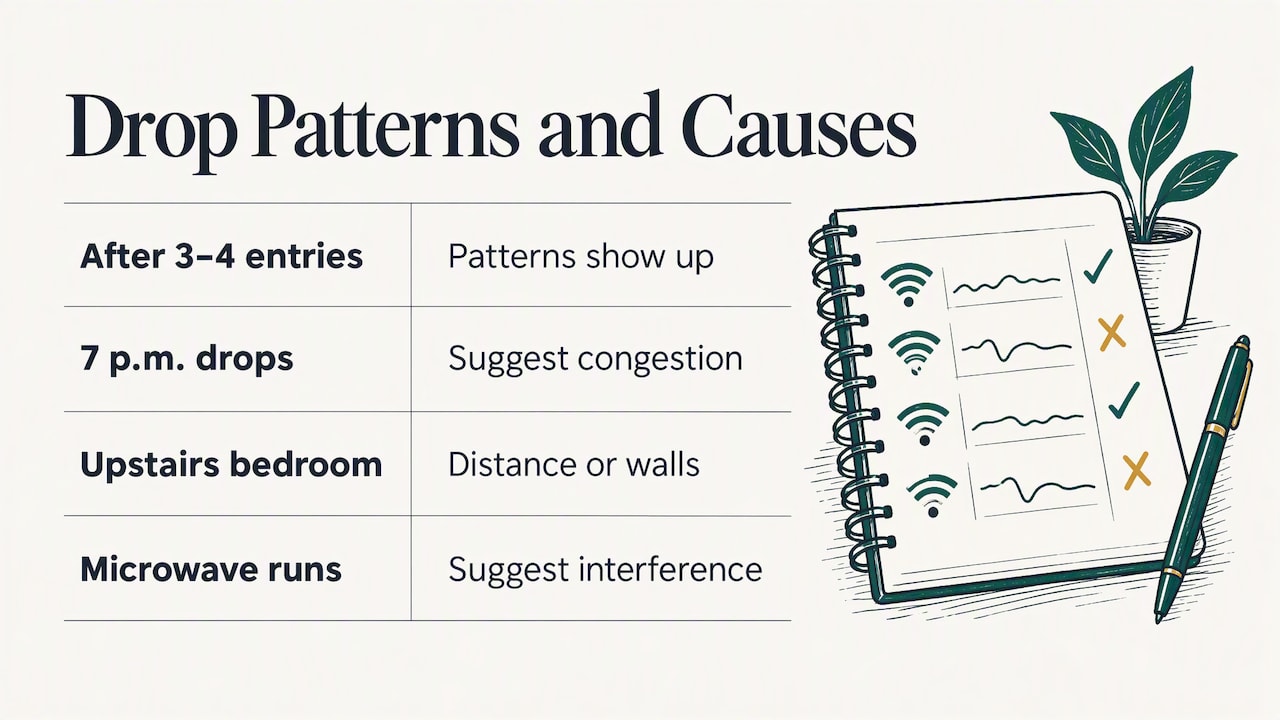
If the drops are random, a log makes them solvable. Microsoft recommends noting the time of each disconnect, the network name, which access point you were on, the signal conditions and whether you moved between access points. At home you can keep it simple: time, room, device, and what was running (a video call, a download, the microwave). After three or four entries, patterns show up. Drops at 7 p.m. suggest congestion. Drops only in the upstairs bedroom suggest distance or walls. Drops every time the microwave runs suggest interference.
The usual causes of Wi-Fi that keeps cutting out
Intel’s support guidance lists the common culprits: outdated or incorrect drivers, incorrect network configuration, wireless adapter settings, router configuration and interference. Here is how each shows up in a real home.
| Likely cause | What it looks like | First thing to try |
|---|---|---|
| Router needs a restart | Every device drops, often after days of uptime | Power cycle the router |
| Weak signal or obstructions | Drops in certain rooms, fine near the router | Move the router or the device |
| Interference or a crowded channel | Drops at busy times or when appliances run | Set a fixed channel |
| Device driver or adapter settings | One laptop drops, others are fine | Update the Wi-Fi driver, check power settings |
| Too much demand | Drops when several people stream or download | Pause heavy use and retest |
| Provider problem | Cable also drops, lights red or amber | Check status page, call support |
Distance and obstructions
Solid objects between the router and your device reduce signal quality, and Intel recommends minimizing obstructions or improving line of sight. Ofcom, the UK communications regulator, gives homely examples of what gets in the way: walls, bookcases and even fish tanks can all affect signal strength. A router tucked in a cabinet, behind the TV or in a basement corner is a classic cause of drops that seem random but always happen in the same room.

Too many devices and heavy use
Yes, a busy network can drop connections. Ofcom notes that when several people are using data-heavy services such as large downloads or HD streaming, performance can suffer. To test it, pause big downloads, cloud backups and streams, and see whether the drops stop. If they do, the fix is spreading the load (schedule backups overnight, move a desktop or TV to Ethernet) rather than replacing equipment. Our guide to fixing slow Wi-Fi at home covers the speed side of the same problem.
Interference from household electronics
Routers work best when they sit in an open, central location, off the floor and away from electrical devices such as cordless phones or baby monitors. If your drops line up with a particular appliance, move the router or the appliance and retest.
Fixes to try, quickest first
Work down this list and retest after each step. Changing five things at once leaves you not knowing which one worked.
1. Restart the router properly
Unplug the power cable, wait about 30 seconds, then plug it back in. Ofcom says this can clear temporary glitches and improve your connection, and Linksys lists the same power cycle as its first step for home Wi-Fi trouble. Give it a few minutes to come fully back up before you judge the result. If your provider gave you a separate modem, restart it too, and power it on first.
A restart is a diagnostic as well as a fix. If it cures the problem for days, you had a one-off glitch. If it cures the problem for an hour, read the “when to call” section below.
2. Restart the device that drops
Turn Wi-Fi off and on, then restart the phone, laptop or TV. Next, tell the device to forget the network and join again with the password. This clears a stored profile that has gone stale. It is quick, but it only helps when one device is the problem. Keep your Wi-Fi password handy before you try it.
3. Move the router
Put it somewhere open and central, raised off the floor, with as few walls as possible between it and the rooms you use. Retest from the room where drops happen. Sometimes moving it just six feet out of a corner solves what a week of settings changes would not.
4. Try a fixed Wi-Fi channel
Routers often pick a channel automatically, and the automatic choice is not always stable. Intel recommends testing a manually selected channel when random disconnects occur, and on 2.4 GHz specifically channels 1, 6 or 11. Log in to your router’s settings page (the address and login are usually printed on a label on the router), find the wireless settings, set the 2.4 GHz channel to 1, 6 or 11, save, and test for a day. If one doesn’t help, try another of the three.
5. Update drivers and router firmware
Outdated or incorrect drivers are one of the causes Intel lists for disconnects. On a Windows laptop, update the Wi-Fi driver through Windows Update or the laptop maker’s support page. For the router, look in its admin page or app for a firmware update. Australia’s cybersecurity authority also lists installing firmware updates and checking whether your router has reached end of life as part of a router health check. A router that no longer gets updates is both a reliability and a security concern.
6. Check the adapter’s power settings on a Windows laptop
If only one Windows laptop drops, look at the Wi-Fi adapter’s settings. Adapter settings are among the causes Intel names. Open Device Manager, expand Network adapters, right-click your Wi-Fi adapter, choose Properties, and on the Power Management tab see whether the option that lets the computer turn off the device to save power is ticked. Untick it, click OK, and retest. This setting is most relevant on laptops running on battery.
7. Reset the network settings on the device
If one Windows PC still drops after the steps above, you can use the built-in network reset: go to Settings, then Network & Internet, then Status, scroll down and choose Network reset. It removes and reinstalls network adapters and returns networking components to their defaults, so you will need to rejoin Wi-Fi networks and re-enter passwords. Do it last, not first.
8. Factory reset the router, only as a last resort
A factory reset can fix a corrupted configuration, and Linksys notes you can reset the router and check whether its default network name appears. It also wipes your network name, Wi-Fi password and any custom settings, and some providers’ routers need login details to reconnect. Write down your settings first, and check your provider’s instructions if the router came from them.
Quick rule: restart before you reset, and reset before you replace. Each step is bigger and more disruptive than the one before.
When the problem is a single device
If your phone is fine and one laptop, console or smart speaker keeps dropping, the router is probably innocent. Run through this list for that device:
- Forget the network and rejoin.
- Update the operating system and the Wi-Fi driver.
- Check the adapter’s power-saving setting (step 6 above).
- Test it in the same room as the router. If it holds there, the issue is range or obstructions, not the device.
- Test it on a different network, such as a phone hotspot. If it drops there too, suspect the device’s hardware or software.
A gaming PC that drops mid-match while everything else holds is the textbook case. Try an Ethernet cable first. It removes the wireless variable entirely, and for stationary devices it is the most reliable fix there is.
When every device drops
If all your devices lose connection at once, concentrate on the router and the line.
- Check the lights and the status page. Red or amber lights and a posted outage point at your provider.
- Test by cable. If a wired computer also loses internet, Wi-Fi settings are not the cause.
- Look at uptime patterns. Drops that arrive on a schedule, such as every evening, suggest congestion or interference. Drops that arrive at random after a restart suggest failing hardware.
- Check the cables. Make sure the coax, phone or Ethernet cable from the wall is firmly seated and not pinched or kinked, and that the power adapter is the one that came with the router.
The same Microsoft guidance that separates a dropped wireless link from a failure of internet access applies here. If the Wi-Fi icon says connected but pages won’t load, look at DNS, DHCP and similar settings rather than signal strength. Restarting the router often renews those too.
Could the drops mean someone has hacked your Wi-Fi?
Usually not. Security company ESET points out that sudden disconnections can have harmless explanations, and the causes above are far more common. Still, a quick check costs nothing. Look in your router’s admin page or app for unfamiliar devices on the connected list, and check whether router settings or DNS entries have changed without you doing it. ESET also suggests looking at unusual traffic, router logs and firmware status.
The Australian Cyber Security Centre’s router health check is a sound routine for any household: check whether the router is past end of life, install firmware updates, review connected devices for unauthorized clients and reboot the router at least every six months. If you find a device you cannot identify, change the Wi-Fi password and the router’s admin password, then update the firmware.
A worked example: the evening drops
Here is how the process plays out in a typical household. Every evening around 8 p.m. the Wi-Fi in the living room cuts out for a minute, then returns.
- The log shows it happens on the TV, the phone and the laptop, so it is not one device.
- A cable test on the desktop shows no drops, so the line is stable and the problem is wireless.
- The router sits behind the TV, with a baby monitor on the shelf next to it. Moving the router to a shelf across the room, away from the monitor, helps but does not end it.
- The router is on automatic channel selection. Setting the 2.4 GHz channel to 6 and moving the TV to Ethernet clears the rest.
None of those steps needed a technician. Each one changed a single variable, and the log said which one mattered.
Prevent the next round of drops
- Keep the router in the open, off the floor and away from other electronics.
- Reboot it now and then. The Australian guidance suggests at least every six months as a minimum.
- Install router firmware updates and replace a router that no longer receives them.
- Put stationary, high-demand devices such as desktops, consoles and TVs on Ethernet.
- Spread out heavy uses such as big downloads and cloud backups.
Renters can do almost all of this. If the router belongs to your landlord or provider, ask them to handle firmware and replacements.
When to stop and call your provider
Stop troubleshooting and contact your internet provider when:
- The router shows red or amber lights, or a wired computer also loses internet.
- Your provider’s status page or support channels report an outage in your area.
- You find yourself rebooting the router more than a few times a week. A Wirecutter router tester says this may indicate a more serious problem.
- The drops continue after a factory reset and a cable test.
When you call, bring your log: the times of the drops, which devices were affected, what you already tried, and whether a wired connection also failed. That turns a generic “have you tried turning it off and on” call into a short one, and it makes a technician visit easier to justify. If the router is your own and several steps have failed, a replacement or a mesh system for a larger home is the next sensible spend.
Our view: fix the cause, not the symptom
At Fix It Daily we see the same pattern with Wi-Fi as with a running toilet: people repeat the restart that works for an hour instead of asking why they need it. We built our guides around finding the root cause first, trying safe first fixes second and calling a professional third.
For Wi-Fi, that means the cable test and the log. They take ten minutes and they tell you whether you are fighting your router, your device or your provider. Our approach is to explain each step in plain English, flag what a reset will erase before you press the button, and tell you plainly when the next step belongs to your provider. Doing it in that order protects your time and saves you from replacing gear that was never broken.
Nikki
More step-by-step help from Fix It Daily
If your connection is stable but slow, start with our guide to fixing slow Wi-Fi at home. It uses the same isolate-then-fix approach and adds speed tests and placement tips.

Wi-Fi is rarely the only thing acting up. If a connected device is the one complaining, our walkthrough for a printer that says offline shows how to separate network trouble from device trouble on Windows and Mac. You can browse all our plumbing, tech and household repair guides on the Fix It Daily home page.
FAQ
Why does my Wi-Fi keep cutting out for a few seconds?
Short drops usually come from interference, a crowded channel, a weak signal or a router that needs a restart. Intel recommends testing a fixed channel, such as 1, 6 or 11 on 2.4 GHz, when disconnects look random. Keep a log of when the drops happen to spot the pattern.
Can too many devices make Wi-Fi disconnect?
They can strain it. Ofcom notes that data-heavy use such as large downloads or HD streaming by several people can affect performance. Pause big downloads and streams and see if the drops stop, then move stationary devices to Ethernet.
How do I reset my Wi-Fi router?
Start with a restart: unplug the power, wait about 30 seconds and plug it back in. A factory reset, usually done with a small reset button, erases your network name, password and custom settings, so note them first. Use it only after a restart, a cable test and a firmware update have failed.
Does Wi-Fi dropping mean I’ve been hacked?
Rarely. Security firm ESET says sudden disconnections often have harmless explanations. Still, check your router’s list of connected devices for ones you don’t recognize, and update the firmware and passwords.
Why does only one device keep losing Wi-Fi?
When the other devices are fine, suspect that device’s driver, settings or distance from the router. Forget and rejoin the network, update its software and Wi-Fi driver, and check its power-saving options. Test it next to the router to rule out range.
Sources
- Quick Checks to Improve or Fix Wi-Fi Connection Issues (Intel)
- Wireless network connectivity issues troubleshooting (Microsoft Learn)
- Get help with broadband and Wi-Fi problems (Ofcom)
- How to fix your broadband (Which?)
- How to Troubleshoot Your Internet Connection, Layer-By-Layer (How-To Geek)
- Troubleshooting home WiFi issues (Linksys Support)
- Secure your Wi-Fi and router (Cyber.gov.au)
- How to check if your router has been hacked (ESET)
- I Test Routers for a Living: What I Do When My Wi-Fi Acts Up (Wirecutter)